
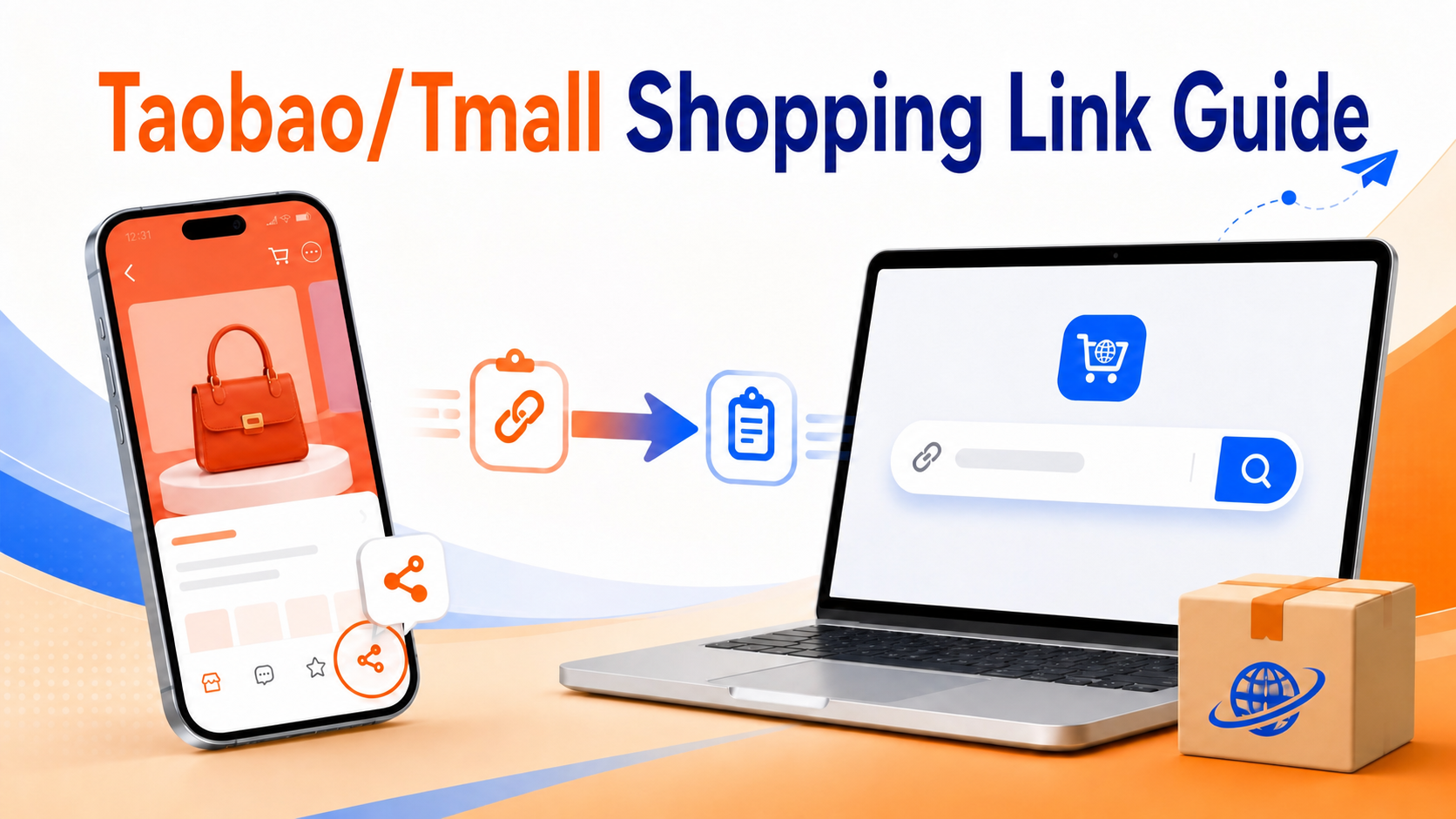
You can place a Taobao or Tmall order through Welisen by copying the product link and pasting it into the shopping search box. The process is the same on both mobile and desktop, and the search box will automatically read the product details for you. Just grab the full link from the product page and paste it in.
Before you start
- Copy the complete Taobao or Tmall product link, not just the title or item ID.
- Taobao's share text usually includes the link, a Taobao code, and the product title. Pasting the entire share text works too—the system will pick out the link automatically.
- If the link can't be parsed automatically, the page will guide you to a manual order form and prefill the original link.
Mobile: tap Share and copy the link
- Open the Taobao or Tmall app and go to the product details page.
- Tap the Share button in the top-right corner.
- Choose 'Copy link.'
- If you copied the whole Taobao share text, paste that entire message into the Welisen search box.

Button positions may differ slightly across app versions, but the flow is always product page → Share → Copy link.
Desktop: copy the browser address bar URL
- Open the Taobao or Tmall product page in your browser.
- Click the address bar at the top.
- Press
Ctrl + Con Windows orCommand + Con Mac. - Copy the full URL starting with
https://, not just the item number.
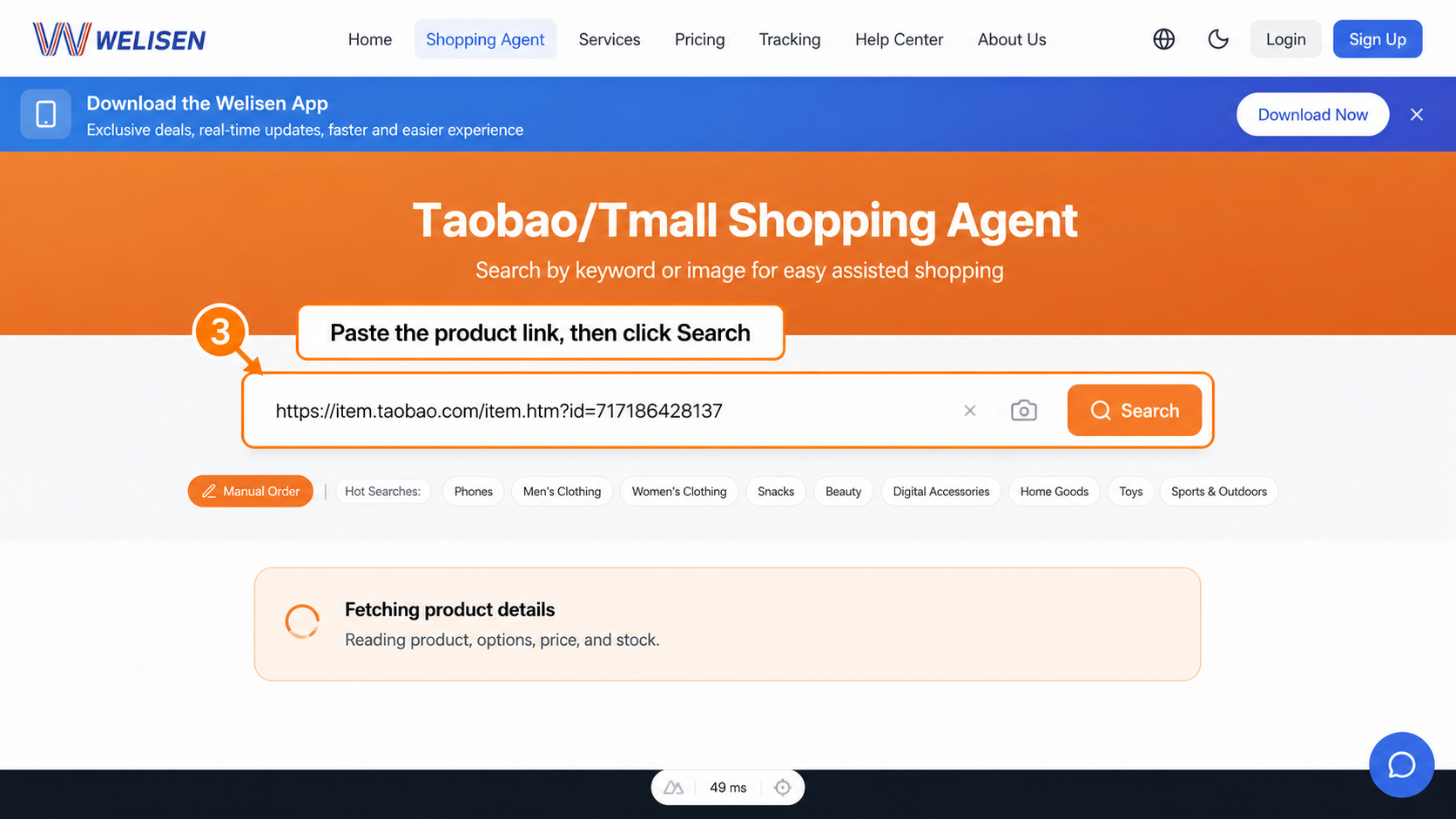
Paste into the Welisen shopping search box
- Open the Welisen Taobao/Tmall shopping page.
- Paste the product link or the entire Taobao share text into the search box.
- Click 'Search.' The system will recognize short links, extract the item ID, and load the product information.
- Wait briefly while the page shows 'Fetching product details'—no need to click repeatedly.
If you want to understand the full cost before you order, have a look at our pricing page.
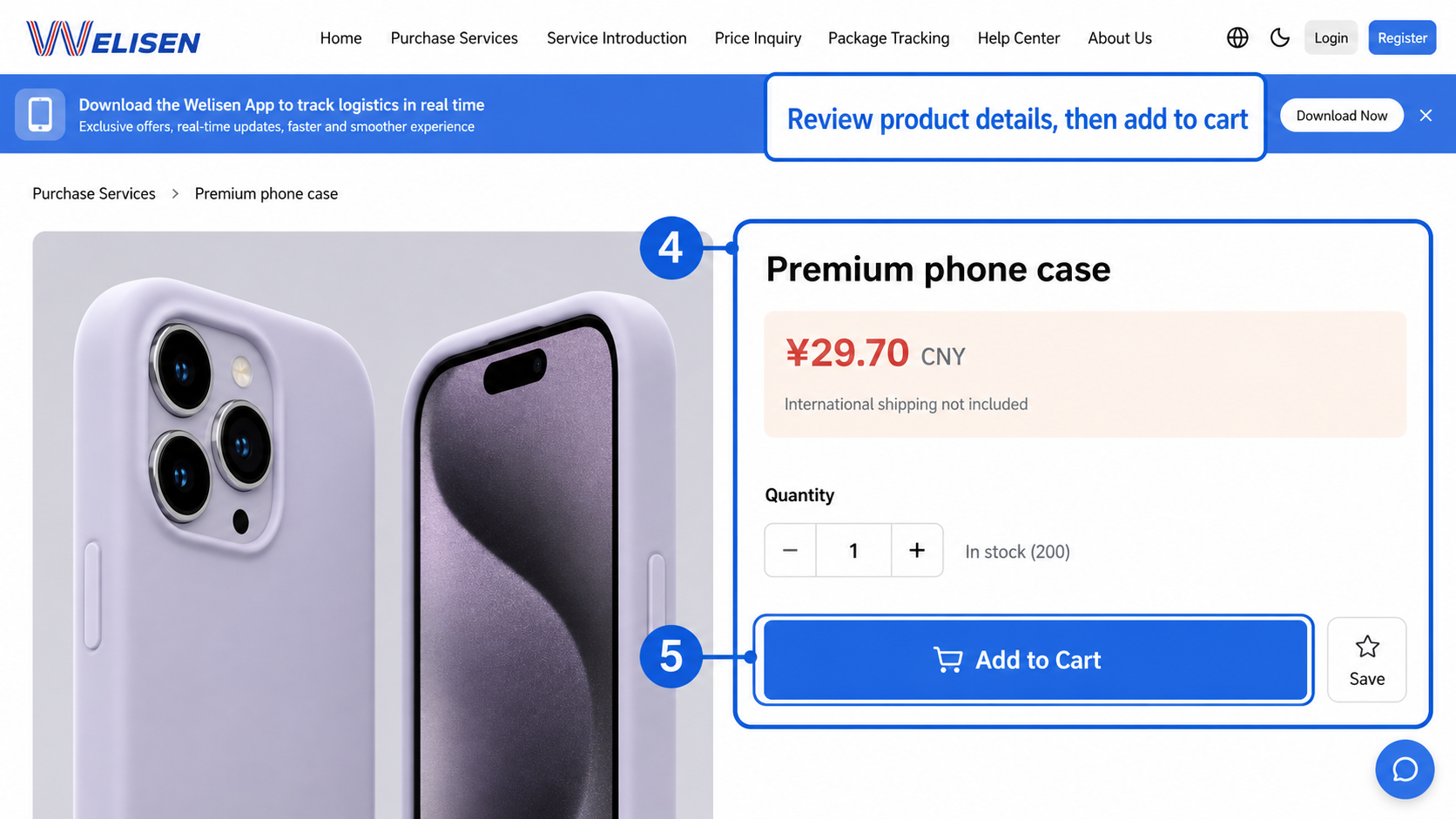
Check the product details and add to cart
After the product page opens, verify:
- The product title, main image, and shop are correct.
- Color, size, model, or other specs.
- Quantity and product price.
- Whether the item falls under shipping restrictions or sensitive goods categories.
Once everything looks right, choose the specs and quantity, then add to cart or place the order directly.
What if the link won't parse?
If you're using a link from another platform, or if a Taobao/Tmall item can't be read automatically, the system will prompt you to use the manual order form. After you click the prompt, the original product link will be filled into the required 'Product link' field automatically. Just add the product name, specs, quantity, and price, then submit.
You can also check our services page to see the full range of platforms we support.
Still need help? Contact Welisen online support and we'll walk you through it. Once your order is in, you can track it on the tracking page.